
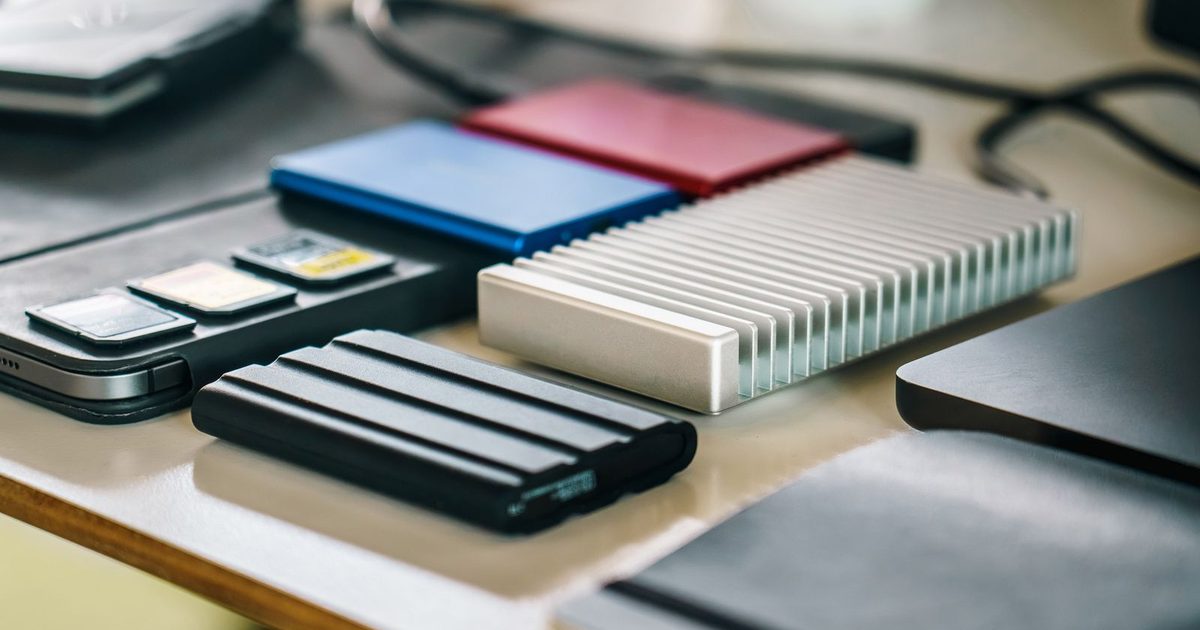
Most business laptops and desktops now run on solid state drives. They are fast, silent and tough enough to survive a bump. But when an SSD fails, it often gives far less warning than an old spinning hard drive, and the data can be much harder to get back.
There is no clicking or grinding to tell you something is wrong. Instead, you get small, easy to ignore symptoms. Knowing what they look like gives you time to copy your files while the drive still works.
Warning signs to watch for
None of these prove an SSD is failing on its own. Several of them together, or any of them getting worse, is a reason to act now.
- Files that will not open or save. You get errors saying a file is corrupt, or a save fails for no clear reason.
- Sudden freezes and blue screens. The computer locks up for a few seconds during normal work, or crashes with storage related errors.
- The drive turns read-only. Many SSDs switch to read-only mode when they run out of spare memory cells. You can see files but cannot change them.
- Slow boots and long pauses. A machine that was quick last month now takes minutes to start or open programs.
- Disk check or health warnings. Windows asks to scan and repair the drive, or a health tool reports reallocated blocks or a low wear rating.
- The drive disappears. It shows up one day and not the next, either in the computer or in the BIOS.
What to do as soon as you notice
- Stop non-essential work on that computer. Every hour of use puts more wear on a drive that may be near its limit.
- Copy your most important files first. Start with anything that is not already in OneDrive, SharePoint or another backed up location.
- Check that your backup actually ran recently and includes this machine.
- Do not run repeated repair scans or free "recovery" tools. They write to the drive and can make things worse.
- Call your IT provider to plan a replacement before the drive stops responding.
If the drive has already stopped showing up, turn the computer off and leave it off. Powering a failing SSD on and off over and over can reduce the chance of recovery.
Why SSD recovery is different from hard drives
With a traditional hard drive, deleted or damaged data often stays on the platters until something overwrites it. A recovery lab can sometimes replace a failed part and read the disk directly. SSDs work in a different way, and three features change the picture.
- TRIM. When you delete a file, the operating system tells the SSD which blocks are no longer needed. The drive then clears those blocks in the background, often within minutes. Once that happens, the deleted data is usually gone for good.
- The controller. An SSD spreads your data across many memory chips and keeps a private map of where everything lives. If the controller chip fails, that map can be lost, and the raw chips are very hard to piece back together.
- Encryption. Many SSDs encrypt data at the hardware level, and Windows BitLocker or Mac FileVault may add another layer. That is good for security. It also means recovery needs a working controller and, for BitLocker or FileVault, the recovery key.
Professional recovery from a failed SSD is still possible in many cases, but it depends heavily on the model and the type of failure. It is slower and less predictable than hard drive work, so prevention matters more.
How to protect your business before a drive fails
- Keep company files in OneDrive, SharePoint or a managed file server, not only on the local drive.
- Back up every computer that holds data you cannot easily replace, and test restores on a schedule. Our guide to a simple restore drill walks through how.
- Store BitLocker and FileVault recovery keys somewhere you can reach if the laptop will not start.
- Use drive health monitoring so warnings reach your IT team, not just a pop-up the user dismisses.
- Replace aging laptops on a planned cycle instead of waiting for them to fail.
When to call for recovery help
If the drive holds data that is not backed up anywhere else, stop and get professional advice before trying anything yourself. Tell the technician what you saw, when it started, and whether the drive is encrypted. That information shapes the recovery approach and saves time.
Getting help
Creative IT USA helps businesses across Los Angeles County, the Inland Empire and Ventura County with failing drives and lost data. Learn more about our hard drive and SSD recovery service, or ask us about managed cloud backup so the next failure is an inconvenience rather than a crisis.